Artificial Intelligence
No-code AI automation: connecting the tools you already use
No-code tools like Make and Zapier let you connect AI to the apps you already use and automate repetitive work, from email to data to documents, without writing a single line of code. You set a trigger and an action, drop an AI step in the middle, and the busywork runs itself.
What is no-code automation?
A no-code automation is a rule that connects two or more apps and lets them work on their own, with no code involved. The idea is simple: a trigger (a starting event) and an action (what happens next). "When an email arrives, save the attachment to the drive" is already an automation.
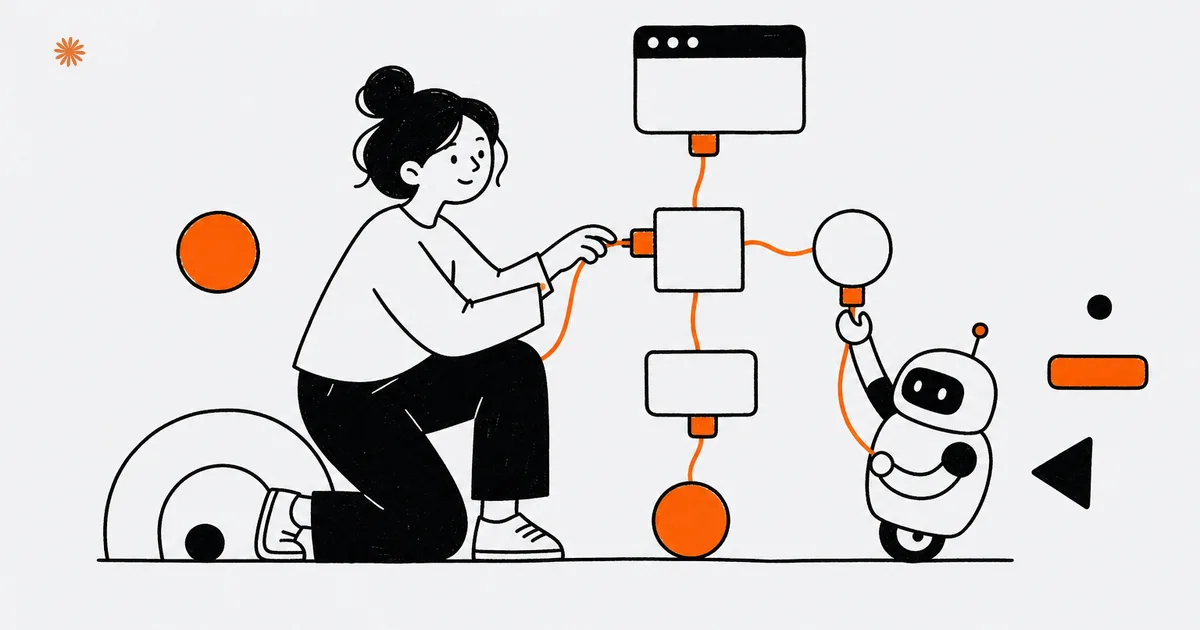
No-code automation: a workflow that links several applications through a visual interface, without programming. You build it by dragging blocks and setting conditions: an opening event (the trigger) kicks off a chain of automatic actions across the tools you already use, like email, a spreadsheet, your CRM, or your calendar.
The key word is "connect." Your tools do not talk to each other on their own: email lives in one place, your CRM in another, your spreadsheet somewhere else. You are the bridge, copying and pasting data from one window to the next dozens of times a day. An automation builds that bridge once, then crosses it for you every time it is needed.
AI comes in as a step in the middle. Between the trigger and the final action you can insert an instruction like "summarize this text" or "pull the name and phone number out of this message." That is the difference between shuttling raw data around and delivering it already processed where it belongs. For the big picture of what AI can do in a business, start with AI for your business.
What can you automate with AI?
With AI inside an automation you can sort incoming email by topic, condense long texts into a few lines, pull structured data out of messy messages, and prepare draft replies. These are all repetitive tasks you handle by hand today, and they eat time without adding value. The automation runs them in seconds, on every event.
The common thread never changes: take natural-language text, often messy, and turn it into something tidy and actionable. A long email becomes a three-line summary. A sloppily filled-out form becomes a clean contact record. A vague request gets classified and routed to the right person. AI here does not "think" for you: it does the boring work of reading and reorganizing.
- Sort: classify incoming email or requests by topic or urgency, and route them to the right person or inbox.
- Summarize: condense long emails, call transcripts, or documents into a few lines you can read at a glance.
- Extract data: pull a name, company, phone number, or amount out of free text and drop it into tidy columns.
- Draft: generate a first reply or a first draft that you review and approve before anything goes out.
"Prepare the draft" does not mean "send without looking." For anything that goes out under your name to a client, the automation prepares and you confirm. The time you save is the time spent writing from scratch, not the time spent checking. For how to write instructions that produce useful results, there is a practical guide in effective prompts for work.
What do real examples for firms and small businesses look like?
The clearest example is handling a new contact. A lead comes in from the site, AI pulls out a summary and the key details, and the record lands in your CRM ready to go. Three steps you used to do by hand, copying from one window to another, become a flow that starts on its own with every new request.
For a service business, the "new lead → summary → CRM" flow works like this: the contact form on the site is the trigger; AI reads the message, extracts the name, contact details, and need, and prepares a two-line summary; the final action creates the record in your CRM and pings the sales rep. The lead does not sit in an inbox for hours: it arrives already processed and assigned.
For a professional firm, the same principle plays out around documents. A CPA receives client invoices by email: the automation files them in the right folder and AI extracts the amount and date for a running summary. An attorney can have incoming requests summarized to gauge the subject and urgency before even opening them. In both cases AI decides nothing of substance: it organizes, classifies, and prepares, leaving the judgment to the professional.
| Trigger | AI step | Final action |
|---|---|---|
| New lead from the site | Summarizes and extracts details | Creates the CRM record and notifies the rep |
| Client email | Classifies by topic | Routes it to the right inbox |
| Incoming document | Extracts the amount and date | Files it and updates the running summary |
| Call transcript | Summarizes the decisions made | Sends the recap to anyone who missed it |
These flows pair well with other ways small businesses use AI: if you want a rundown of the automations that save the most hours, see AI for small businesses. The underlying idea does not change: every automation removes a repeated manual task, not a decision that needs your head.
Where should you start (without overdoing it)?
Start with a single process, the one that eats the most time and that you repeat the same way every day. Map it in three steps (what starts it, what gets done, where the result ends up), then build that one flow. Once it works and you trust it, you add another. Never start by automating ten things at once.
The reason is practical: you can only test an automation, fix it, and learn to trust it when you do one at a time. Pick a low-risk process to begin with, where a mistake causes no harm (an internal summary, not an automatic send to a client). No-code tools like Make and Zapier give you ready-made templates for the most common cases, so you do not start from a blank page.
Before you automate, write the process out by hand in three lines: "When X happens, I do Y, and the result goes to Z." If you cannot describe it clearly in words, the automation will not make it tidier; it will just make it faster, mistakes included.
Keep an eye on the real payoff too. Automating makes sense when the time saved beats the time spent building and maintaining the flow: for a task you do once a month, it is often not worth it. For how to weigh the cost and priority of an AI project without going big, there is a framework in how much AI costs for a business.
What should you watch out for with data and privacy?
An automation that uses AI sends your data, and often your clients' data, through outside tools. So before you wire everything up, you need to know where that information ends up, who can access it, and whether it can be used for anything else. This is not a technical detail: it is a responsibility to the people who trusted you with their data.
The cautious rule is simple: pass only the data a step actually needs through your automated flows, and keep everything else out. For a firm that handles sensitive data (an attorney, a CPA), the choice of tools and where the data is hosted is not a side issue. Better one automation fewer than a client record that ends up somewhere it never should have.
US privacy rules (state laws like the CCPA and CPRA, plus FTC enforcement against unfair or deceptive data practices) set real limits on what you can do with personal information, including inside an automation. What is allowed and what is not, we cover in AI, privacy, and data protection: read it before you put a flow that touches client data into production.
Want to figure out which repetitive tasks you can automate with AI inside your tools, starting from a single concrete process? Let us talk it through and map the first flow together.
Let us talkFrequently asked questions
- Do you need a developer to build an automation?
- No, not for simple flows. No-code tools are built for people who do not code: you work with visual blocks and ready-made templates. A developer helps when flows get complex or have to connect to unusual systems, but to start with one process, the templates and a little patience are enough.
- Which tools should you use?
- To connect apps, you use no-code platforms like Make or Zapier that act as a switchboard between them. For the AI step, you plug in an AI model. The practical rule: start from the tools you already use every day (email, CRM, calendar) and connect those, without changing how you work.
- How much does automating cost?
- It depends on the number of flows and monthly operations: no-code platforms have plans that scale with usage. The bigger cost, though, is the upfront setup time, not the subscription. It pays off when the time saved each month beats the time spent building and maintaining it. For rare tasks, it often is not worth it.
- Is it safe for client data?
- It is if you set the flow up carefully. Data passes through outside tools, so you need to know where it goes, who accesses it, and whether it gets reused. Pass only the information a step needs and keep sensitive data out when it is not required. Check the applicable privacy rules before going into production.

DigitiNexus — Web & Design Agency
We are a team of designers and developers specialized in SEO, Next.js and digital growth for professional firms, small businesses and startups, in the US and beyond. We build websites that bring real traffic and real clients.